
Latest Version
January 18, 2026
AlhudaMedia
Education
Android
0
Free
com.itwindow.basheer.networkcommand
Report a Problem
More About Network Command
Essential Windows Commands for Effective Troubleshooting
In the realm of computer maintenance, understanding basic Windows commands can significantly enhance your troubleshooting skills. This article delves into essential commands that every Windows user should know, providing a solid foundation for diagnosing and resolving common issues.
Why Windows Commands Matter
Windows commands serve as powerful tools for users, enabling them to interact with the operating system directly. By utilizing these commands, you can efficiently troubleshoot problems, manage system resources, and optimize performance. Whether you're a novice or an experienced user, mastering these commands can save you time and frustration.
Getting Started with Command Prompt
The Command Prompt is a command-line interface that allows users to execute commands and perform various tasks. To access it, follow these steps:
- Press Windows + R to open the Run dialog.
- Type cmd and hit Enter.
Once the Command Prompt is open, you can start entering commands to troubleshoot your system.
Key Windows Commands for Troubleshooting
1. ipconfig
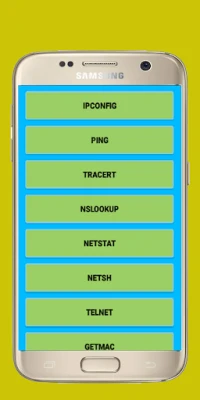
The ipconfig command is essential for network troubleshooting. It displays your computer's IP address, subnet mask, and default gateway. To use it, simply type ipconfig in the Command Prompt and press Enter. This information is crucial for diagnosing connectivity issues.
2. ping
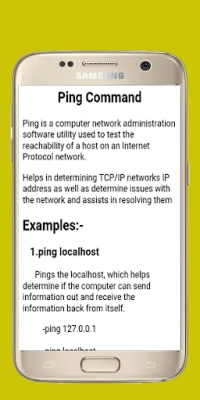
The ping command tests the reachability of a host on a network. By typing ping [hostname or IP address], you can determine if a specific server is accessible. This command is invaluable for identifying network problems and ensuring your internet connection is functioning properly.
3. tracert
Use the tracert command to trace the route packets take to reach a destination. By entering tracert [hostname or IP address], you can identify where delays or failures occur in the network path. This command helps pinpoint issues with routing and connectivity.
4. chkdsk
The chkdsk command checks the integrity of your hard drive and can fix file system errors. To run it, type chkdsk C: (replace C: with the appropriate drive letter) in the Command Prompt. This command is essential for maintaining your system's health and preventing data loss.
5. sfc /scannow
The sfc /scannow command scans for and repairs corrupted system files. Running this command can resolve various issues related to system stability and performance. Simply type sfc /scannow in the Command Prompt and let the system do the rest.
Advanced Commands for Power Users
For those looking to delve deeper into troubleshooting, several advanced commands can provide additional insights and solutions.
1. netstat
The netstat command displays active network connections and listening ports. By typing netstat -a, you can view all connections and their statuses, which is useful for identifying unauthorized access or troubleshooting network issues.
2. tasklist
Use the tasklist command to view all running processes on your system. This command helps you identify resource-hogging applications and troubleshoot performance issues. Simply type tasklist in the Command Prompt to see the list of active processes.
3. taskkill
If you need to terminate a process, the taskkill command is your go-to solution. By typing taskkill /IM [process name], you can forcefully close unresponsive applications. This command is particularly useful for maintaining system responsiveness.
Conclusion: Empower Your Troubleshooting Skills
Mastering these basic and advanced Windows commands can significantly enhance your troubleshooting capabilities. By familiarizing yourself with these tools, you can efficiently diagnose and resolve issues, ensuring your system runs smoothly. Whether you're dealing with network problems, system errors, or performance issues, these commands will empower you to take control of your Windows experience.
Start practicing these commands today, and transform your troubleshooting approach into a more effective and streamlined process.
Rate the App
User Reviews















Popular Apps










Editor's Choice