

Latest Version
1.4
July 22, 2025
Lessy Flash Apps
Tools
Android
0
Free
com.lessyflash.wifisignal.strengthmeter.analyzer
Report a Problem
More About WiFi Analyzer & Signal booster
Unlocking the Power of Your WiFi: Essential Features for Optimal Connectivity
In today's digital age, a reliable WiFi connection is crucial for both personal and professional use. Understanding the features that enhance your WiFi experience can significantly improve your connectivity. This article delves into the key functionalities that can help you optimize your WiFi network, ensuring you enjoy seamless internet access.
1. Real-Time WiFi Signal Strength Monitoring
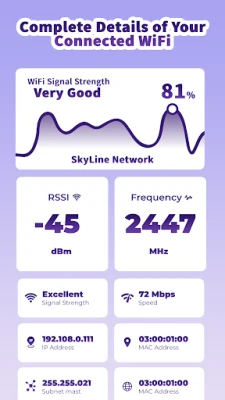
One of the most vital aspects of a stable internet connection is the strength of your WiFi signal. With advanced tools, you can view detailed information about your WiFi signal in real time. This includes:
- Signal Strength: Gauge the quality of your connection.
- Connection Speed: Monitor how fast your data is being transmitted.
- Frequency: Identify whether you are connected to a 2.4 GHz or 5 GHz band.
- Stability: Assess the consistency of your connection over time.
2. Nearby WiFi Network Scanner
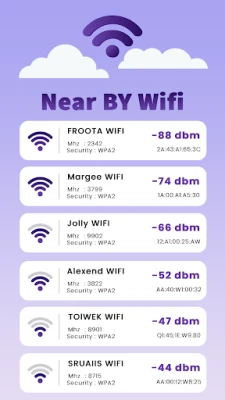
Discovering available WiFi networks in your vicinity is essential for troubleshooting connectivity issues or finding a better connection. A nearby WiFi scanner provides:
- SSID: The name of each network.
- Signal Level: The strength of each network's signal.
- Security Type: Information on whether the network is open or secured.
- Frequency and Channel: Details that help you choose the best network for your needs.
3. WiFi Speed Testing Made Easy
Measuring your internet speed is crucial for understanding your connection's performance. With a simple tap, you can:
- Download Speed: Check how quickly data is downloaded.
- Upload Speed: Measure how fast you can send data.
- Ping: Assess the latency of your connection.
Real-time graphs display peak performance, allowing you to visualize your network's capabilities.
4. WiFi QR Code Generator and Scanner
Sharing your WiFi network has never been easier. With a QR code generator, you can:
- Create QR Codes: Generate codes that allow others to connect to your network effortlessly.
- Scan QR Codes: Connect to networks without the hassle of typing in passwords.
5. Comprehensive Access Point View
Understanding the access points around you can help optimize your connection. An access point view feature allows you to:
- List Nearby Access Points: See all available networks and their signal levels.
- Technical Details: Access information about each network's capabilities.
6. Channel Rating for Enhanced Performance
Choosing the right channel for your router can significantly reduce interference. A channel rating feature helps you:
- Identify Optimal Channels: Find the best channel to enhance your network's performance.
- Reduce Interference: Minimize disruptions from neighboring networks.
7. Visualizing Channel Overlaps
Understanding channel overlaps in your area is crucial for selecting the best frequency. A channel graph provides:
- Visualization: See overlapping channels to make informed decisions.
- Optimal Selection: Choose the best channel for your network.
8. Time Graph for Signal Tracking
Monitoring how your WiFi signal fluctuates over time can help you identify patterns. A time graph feature allows you to:
- Track Changes: Observe how your signal strength varies throughout the day.
- Interactive Graphs: Engage with data for better understanding.
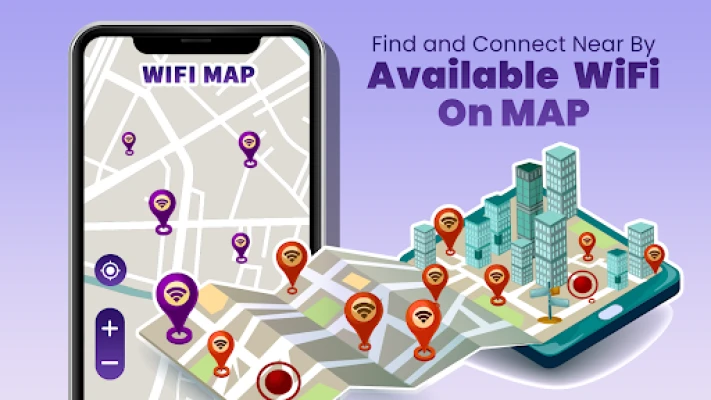
9. WiFi Map and Heat Map Visualization
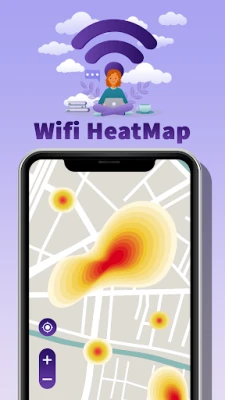
Mapping out WiFi networks in your vicinity can help you find the best connection. A WiFi map feature enables you to:
- Live Map View: See nearby networks with location markers.
- Heat Map Generation: Visualize the strength and coverage of WiFi signals around you.
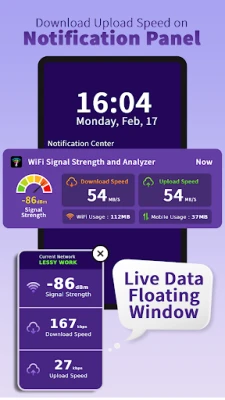
10. Real-Time Notifications for WiFi and Mobile Data
Staying informed about your connection is essential. A notification feature provides:
- Live Updates: Get real-time notifications on download and upload speeds.
- Signal Strength: Monitor the strength of both mobile data and WiFi.
- Usage Stats: Keep track of your data consumption.
11. Floating Speed Monitor for Continuous Awareness
For those who multitask, a floating speed monitor keeps you updated without interrupting your workflow. This feature allows you to:
- Live Display: View download and upload speeds in a floating window.
- Top Speed Values: Stay informed about peak performance while using other apps.
Conclusion
Understanding and utilizing these key features can significantly enhance your WiFi experience. From monitoring signal strength to optimizing channels and sharing connections effortlessly, these tools empower you to take control of your internet connectivity. Embrace these functionalities to ensure a seamless and efficient online experience.
Rate the App
User Reviews












Popular Apps










Editor's Choice