

Latest Version
June 25, 2026
Whale TV
Tools
Android
0
Free
com.zeasn.whalemeta
Report a Problem
More About Whale TV App
Unlock the Full Potential of Your Whale TV: A Comprehensive Guide
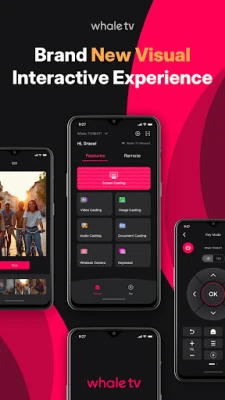
Are you ready to elevate your viewing experience? Connecting to your Whale TV opens up a world of entertainment possibilities. This guide will walk you through the process of logging in and utilizing essential features like screen mirroring and virtual remote control. Let’s dive in!
Getting Started: How to Log In to Your Whale TV
Before you can enjoy all the features Whale TV has to offer, you need to log in. Follow these simple steps to get started:
- Power On Your Whale TV: Ensure your TV is plugged in and powered on. Wait for the home screen to appear.
- Select the Login Option: Navigate to the login section using your remote control.
- Enter Your Credentials: Input your username and password. If you don’t have an account, you may need to create one.
- Confirm Your Login: After entering your details, click on the login button to access your Whale TV dashboard.
Exploring Screen Mirroring: Share Your Content Effortlessly
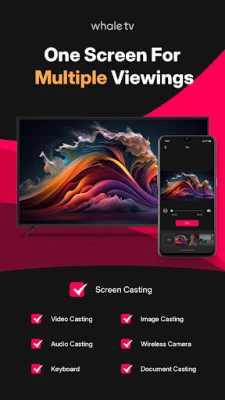
Screen mirroring is a fantastic feature that allows you to display content from your smartphone, tablet, or computer directly onto your Whale TV. Here’s how to set it up:
- Ensure Compatibility: Make sure your device supports screen mirroring and is connected to the same Wi-Fi network as your Whale TV.
- Access Screen Mirroring Settings: On your Whale TV, navigate to the settings menu and select the screen mirroring option.
- Initiate Mirroring from Your Device: On your smartphone or tablet, swipe down to access the quick settings menu and select the screen mirroring option. Choose your Whale TV from the list of available devices.
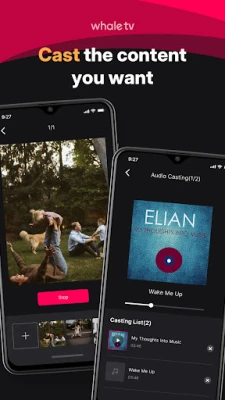
- Enjoy Your Content: Once connected, your device’s screen will be mirrored on your TV. You can now enjoy videos, photos, and presentations on a larger display.
Utilizing the Virtual Remote Control: Convenience at Your Fingertips
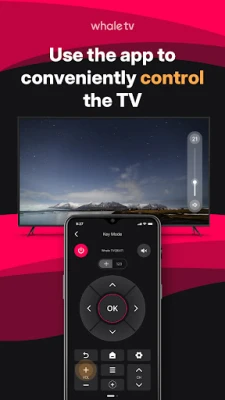
The virtual remote control feature enhances your viewing experience by providing easy access to all your TV functions without the need for a physical remote. Here’s how to use it:
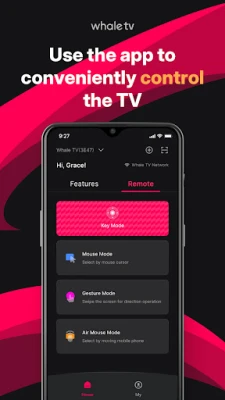
- Download the Whale TV App: Available on both iOS and Android, the Whale TV app allows you to control your TV from your smartphone.
- Connect the App to Your TV: Open the app and follow the prompts to connect it to your Whale TV. Ensure both devices are on the same Wi-Fi network.
- Explore the Features: The app provides a user-friendly interface that mimics your physical remote. You can change channels, adjust the volume, and access settings with ease.
- Enjoy Seamless Navigation: With the virtual remote, you can navigate through menus and apps effortlessly, making your viewing experience more enjoyable.
Maximizing Your Whale TV Experience: Additional Tips
To truly make the most of your Whale TV, consider these additional tips:
- Regular Software Updates: Keep your Whale TV updated to ensure you have the latest features and security enhancements.
- Explore Streaming Services: Take advantage of various streaming platforms available on Whale TV. Subscribing to services like Netflix, Hulu, or Amazon Prime can expand your entertainment options.
- Customize Your Settings: Adjust picture and sound settings to suit your preferences for an optimal viewing experience.
- Utilize Voice Control: If your Whale TV supports voice commands, use this feature for hands-free navigation and control.
Troubleshooting Common Issues
Even with the best technology, issues can arise. Here are some common problems and their solutions:
- Connection Problems: If you’re having trouble connecting to Wi-Fi, ensure your router is functioning properly and that your TV is within range.
- Screen Mirroring Issues: If screen mirroring isn’t working, check that both devices are on the same network and that screen mirroring is enabled on your TV.
- App Crashes: If an app crashes, try restarting your Whale TV or reinstalling the app for a fresh start.
Conclusion: Enjoy Endless Entertainment with Whale TV
Connecting to your Whale TV and utilizing its features like screen mirroring and virtual remote control can significantly enhance your entertainment experience. By following the steps outlined in this guide, you can easily log in, share content, and control your TV with convenience. Embrace the full potential of your Whale TV and enjoy a world of entertainment at your fingertips!
Rate the App
User Reviews











Popular Apps










Editor's Choice