Latest Version
9.4.49
May 25, 2026
osApps
Tools
Android
0
Free
com.osfunapps.remoteforsamsung
Report a Problem
More About TV Remote Control For Samsung
Ultimate Guide to the Samsung TV Remote Control App: Features, Setup, and FAQs
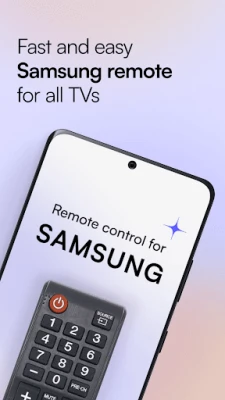
In today's digital age, controlling your Samsung TV has never been easier, thanks to innovative applications that serve as remote control devices. Our Samsung TV Remote Control App is designed to work seamlessly with both Smart and Non-Smart Samsung TVs, making it accessible for everyone, including children aged 3 and up. This article delves into the app's features, setup process, and answers to frequently asked questions, ensuring you get the most out of your viewing experience.
Key Features of the Samsung TV Remote Control App
The Samsung TV Remote Control App boasts a variety of features that enhance user experience and convenience:
- User-Friendly Interface: The app is designed to be fun and simple to use, making it accessible for all ages.
- Compatibility: It works with both Smart and Non-Smart Samsung TVs, ensuring versatility.
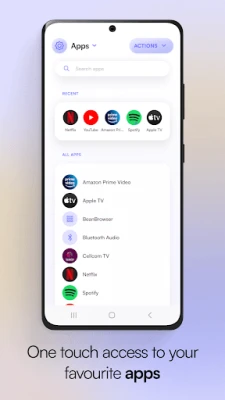
- One-Touch Access: Quickly connect to popular streaming apps like YouTube, Netflix, and Spotify with just one tap.
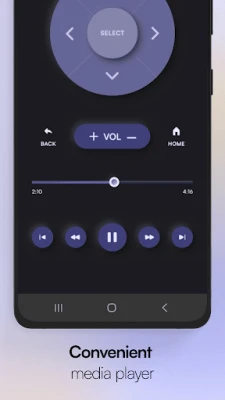
- Integrated Media Player: Enjoy a built-in media player for easy access to your favorite content.
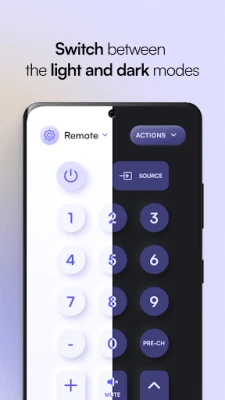
- Customizable Themes: Choose between dark and light themes to suit your preferences.
- Easy Installation: The app is straightforward to install and set up, allowing you to start controlling your TV in no time.
How to Navigate the App
Selection Screen
Upon launching the app, you will encounter the Selection Screen, where you can choose from a variety of remote designs tailored to your preferences.
Discovery Screen
The Discovery Screen displays all devices connected to the same Wi-Fi network. Here, you can easily locate your TV to pair it with the remote control.
Remote Control Screen
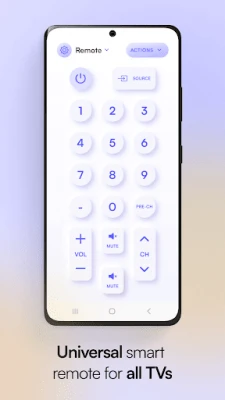
Your selected remote control will appear on this screen. Simply tap the buttons to operate your TV just like you would with the original remote.
Touch Pad Screen
This feature allows you to add your favorite or frequently used buttons to the top strip for quick access. Additionally, the built-in touchpad area enables smooth navigation.
Apps Screen
All apps installed on your Smart TV will be displayed here, including popular options like YouTube, Netflix, Prime Video, and Media Player.
Media Screen
The Media Screen provides a convenient interface for managing your media content, making it easy to access and control your favorite shows and movies.
Supported Samsung TV Models
The Samsung TV Remote Control App is compatible with various Samsung TV models running Tizen OS, including:
- Samsung Smart TV Series C
- Series D
- Series E
- Series F
- Series K
- Series Q
- Series M
- Series N
- Series RU
Frequently Asked Questions (FAQs)
What do you need to use the Samsung TV Remote Control App?
To utilize this universal remote control app, ensure you have a smartphone or tablet and a Wi-Fi connection that both your device and TV are connected to. The app operates over a wireless network, so you don’t need to be in close proximity to your TV.
How can you control your Samsung TV without a remote?
Controlling your Samsung TV without a physical remote is simple. Download the Samsung Smart TV Remote Control App from the Google Play Store or the App Store. After installation, set up the app and synchronize it with your TV. Ensure you have an active Wi-Fi connection, and you’re ready to control your TV anytime.
What is a universal remote control for Samsung TVs?
A universal remote control for Samsung TVs allows you to manage multiple TVs from a single app. This feature is particularly beneficial for households with more than one TV, enabling easy synchronization and control.
Disclaimer
Please note that while this Samsung Remote Control App is designed to work effectively with all Samsung TVs, whether smart or non-smart, it is not the official Remote Control for Samsung app.
We encourage you to rate our Samsung TV Remote Control App and share your feedback. Your comments help us improve and provide you with the best possible experience.
In conclusion, the Samsung TV Remote Control App is a powerful tool that enhances your viewing experience by providing easy access to your TV and favorite streaming services. With its user-friendly interface and robust features, it’s an essential app for any Samsung TV owner.
Rate the App
User Reviews






Popular Apps







Editor's Choice