Latest Version
4.7.36
October 13, 2024
TP-LINK SYSTEMS INC.
Tools
Android
0
Free
com.tplink.tether
Report a Problem
More About TP-Link Tether
Ultimate Guide to Setting Up Your TP-Link Devices: SSID, Security, and Management
In today's digital age, ensuring a secure and efficient home network is paramount. This comprehensive guide will walk you through the essential steps to set up your TP-Link devices, manage user access, and optimize your internet experience. Whether you're a tech novice or a seasoned pro, this article will provide valuable insights to enhance your network management skills.
Configuring Your SSID and Password
The first step in setting up your TP-Link device is configuring your SSID (Service Set Identifier) and password. Your SSID is the name of your Wi-Fi network, and a strong password is crucial for protecting your network from unauthorized access.
- Access the Router Settings: Connect to your TP-Link router and enter the IP address (usually
192.168.0.1or192.168.1.1) in your web browser. Log in with your admin credentials. - Change SSID: Navigate to the Wireless settings section and enter your desired SSID. Choose a name that is unique but not personally identifiable.
- Set a Strong Password: Create a complex password that includes a mix of letters, numbers, and symbols. This will help prevent unauthorized access to your network.
Blocking Unauthorized Users
To maintain a secure network, it’s essential to block unauthorized users from accessing your devices. TP-Link routers offer various features to help you manage connected devices effectively.
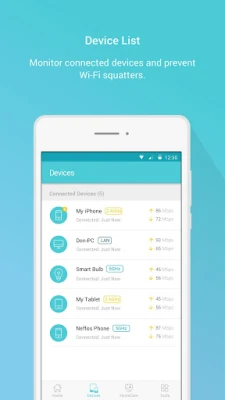
- Device Management: In the router settings, navigate to the DHCP Client List to view all connected devices. Identify any unfamiliar devices and block them.
- MAC Address Filtering: Enable MAC address filtering to allow only specific devices to connect to your network. This adds an extra layer of security.
Managing Client Device Permissions
Managing permissions for client devices is crucial for maintaining control over your network. With TP-Link's management features, you can easily set restrictions and monitor usage.
- Access Control: Use the Access Control feature to set rules for when and how devices can connect to your network. This is particularly useful for managing children's internet access.
- Bandwidth Control: Allocate bandwidth to specific devices to ensure that all users have a fair share of the internet speed.
Implementing Parental Controls
Parental controls are essential for managing children's internet usage. TP-Link devices offer robust parental control features that allow you to set schedules and manage URL access.
- Schedule Internet Access: Set specific times when devices can access the internet, ensuring that children are not online during homework or bedtime.
- URL Filtering: Block access to inappropriate websites by entering specific URLs in the parental control settings.
Optimal Placement of Your Range Extender
To maximize your Wi-Fi coverage, it’s important to find the best location for your range extender. Here are some tips to help you achieve optimal placement:
- Central Location: Place the range extender in a central location between your router and the area with weak signal strength.
- Avoid Obstacles: Keep the extender away from walls, metal objects, and electronic devices that may interfere with the signal.
Managing LED Indicators
LED indicators on your TP-Link devices can be distracting, especially at night. Fortunately, you can manage these lights to turn off automatically at specific times.
- Access LED Settings: In the device settings, look for the LED control option. Here, you can set a schedule for when the LEDs should turn off.
Simultaneous Management of TP-Link Devices
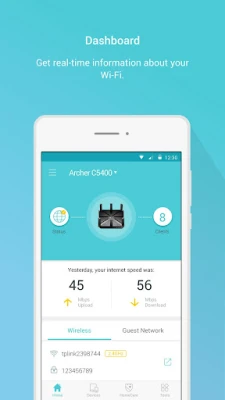
TP-Link Tether app allows you to manage multiple TP-Link devices simultaneously, making it easier to keep your network organized and secure.
- Unified Interface: Use the Tether app to view and manage all your TP-Link devices from a single interface, simplifying network management.
- Real-Time Monitoring: Monitor your network in real-time, allowing you to quickly identify and resolve any issues that may arise.
Compatible Routers and Important Notes
Before you begin, ensure that your TP-Link device is compatible with the Tether app. You can find a list of compatible routers on the TP-Link website.
Important Notes:
- Ensure that your firmware is up to date. Visit the TP-Link support page to download the latest firmware version.
- TP-Link Tether does not function when connected to a guest network.
- For any issues, please contact TP-Link support.
Conclusion
Setting up and managing your TP-Link devices doesn't have to be a daunting task. By following the steps outlined in this guide, you can ensure a secure and efficient home network. From configuring your SSID and password to implementing parental controls and managing device permissions, these tips will help you take full control of your internet experience. Stay connected, stay secure!
Rate the App
User Reviews









Popular Apps










Editor's Choice