

Latest Version
1.0.1
February 06, 2026
TechDoctorUK
Tools
Android
0
$1.99
com.tduk.dnsswitch
Report a Problem
More About TDUK DNS Switcher
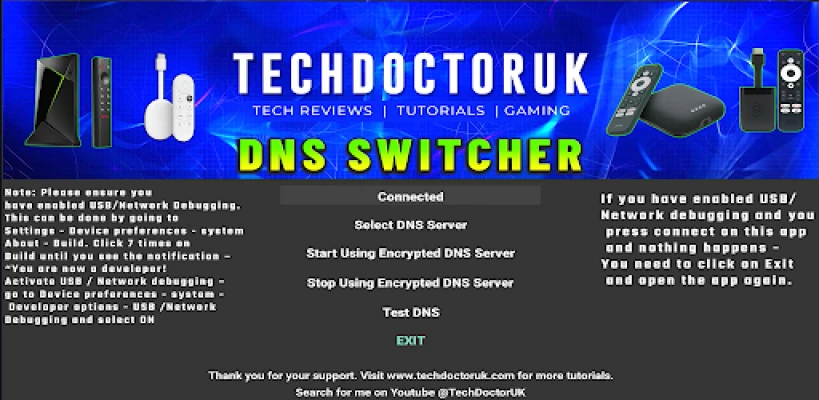
Enhance Your Android TV Experience with Encrypted DNS Servers
In today's digital age, safeguarding your online privacy is more crucial than ever. One effective way to enhance your Android TV's security is by utilizing an encrypted DNS server. This application allows you to seamlessly configure your device to use a secure DNS service, ensuring that your DNS requests remain private and protected from prying eyes.
Why Use an Encrypted DNS Server?
Using an encrypted DNS server offers numerous benefits, including:
- Privacy Protection: By encrypting your DNS queries, you prevent third parties from tracking your online activities.
- Enhanced Security: Encrypted DNS servers help protect against DNS spoofing and other cyber threats.
- Improved Performance: Many encrypted DNS services offer faster response times, leading to a smoother streaming experience.
Choosing the Right Encrypted DNS Server
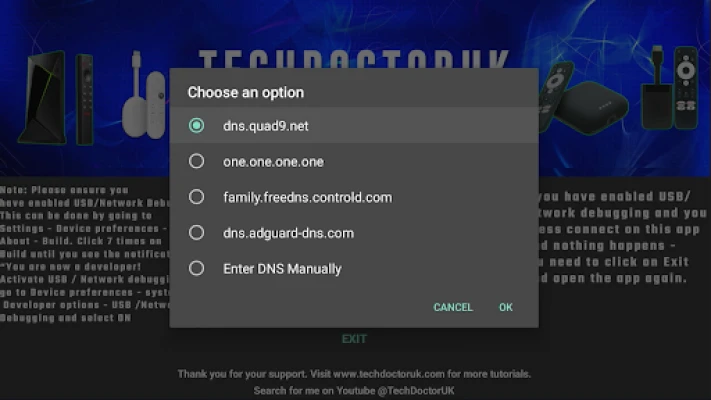
When setting up your Android TV, you can select from a variety of well-known encrypted DNS servers. Some popular options include:
- Cloudflare DNS: Known for its speed and privacy-focused policies.
- Google Public DNS: Offers reliable performance and security features.
- OpenDNS: Provides customizable filtering options and enhanced security.
If you prefer, you can also add your own custom DNS server to tailor your experience further.
Setting Up the Application
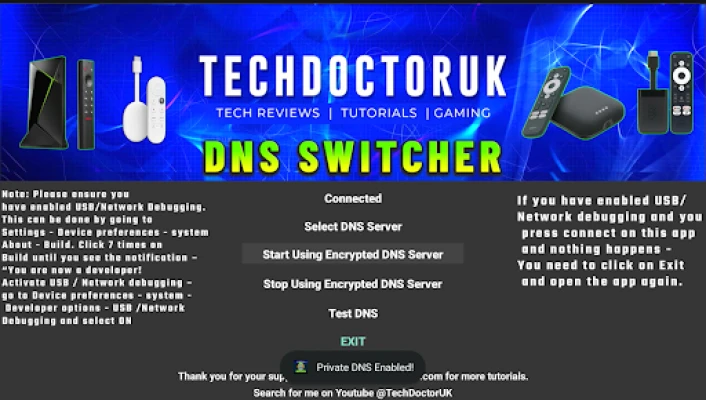
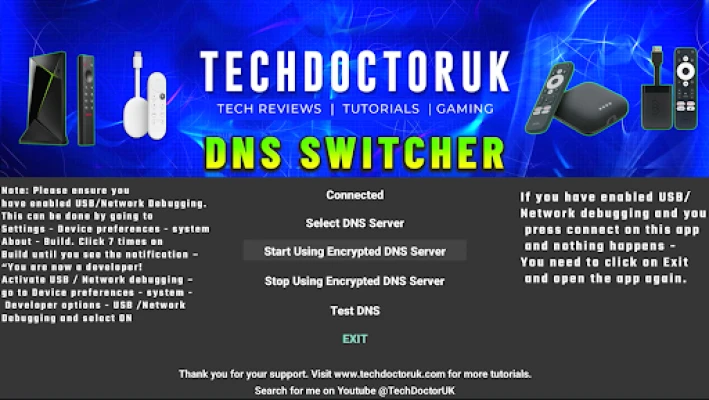
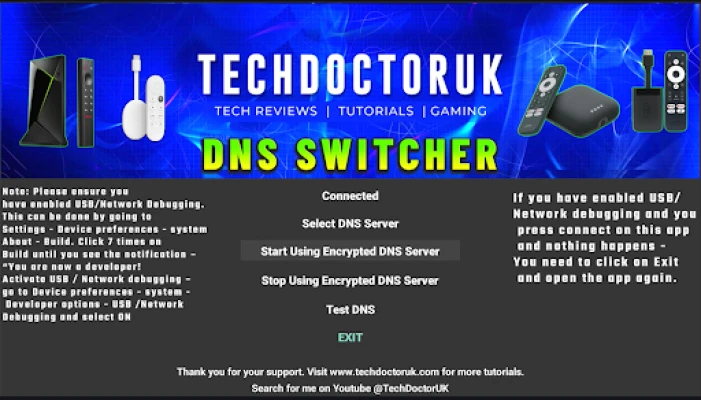
Before diving into the setup process, ensure that you have enabled USB or Network Debugging on your Android TV. This step is crucial for the application to function correctly. Follow these simple steps to get started:
- Download the Application: Locate the application in the Google Play Store and install it on your Android TV.
- Open the Application: Launch the app and navigate to the settings menu.
- Select Your DNS Server: Choose from the list of encrypted DNS servers or input your custom server address.
- Save Your Settings: After making your selection, save the changes to apply the new DNS configuration.
Testing Your DNS Configuration
Once you have configured your Android TV to use an encrypted DNS server, it's essential to verify that the settings are working correctly. You can do this by:
- Visiting a DNS leak test website to check if your DNS requests are being routed through the selected server.
- Streaming content to ensure that there are no interruptions or slowdowns.
Conclusion
Utilizing an encrypted DNS server on your Android TV is a straightforward yet effective way to enhance your online privacy and security. By following the steps outlined above, you can easily set up the application and enjoy a safer streaming experience. Protect your digital footprint today and take control of your online privacy!
Rate the App
User Reviews














Popular Apps










Editor's Choice