
Latest Version
4.1.3
March 22, 2026
OZI Apps Global
Tools
Android
0
Free
com.thetamobile.smartswitch.backup.restore
Report a Problem
More About Smart Switch Mobile: Transfer
Ultimate Guide to Smart Switch Mobile Data Transfer: Backup and Restore Made Easy
In today's fast-paced digital world, switching phones can be a daunting task, especially when it comes to transferring your valuable data. Fortunately, the Smart Switch Mobile Data Transfer app simplifies this process, allowing you to seamlessly move your data from one device to another. This comprehensive guide will explore the features, benefits, and step-by-step instructions for using Smart Switch to back up and restore your data effectively.
What is Smart Switch Mobile?
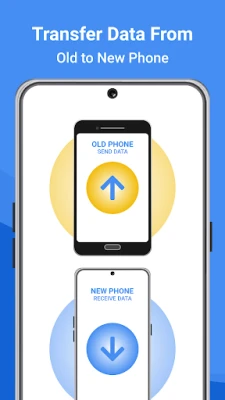
Smart Switch Mobile is a powerful application designed to facilitate the transfer of data between mobile devices. Whether you're upgrading to a new phone or switching brands, Smart Switch ensures that your contacts, messages, photos, and other essential files are transferred quickly and securely.
Key Features of Smart Switch Mobile
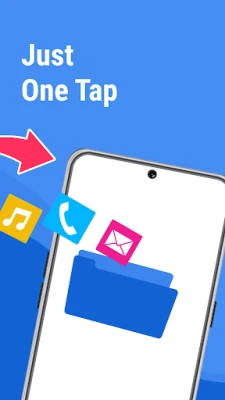
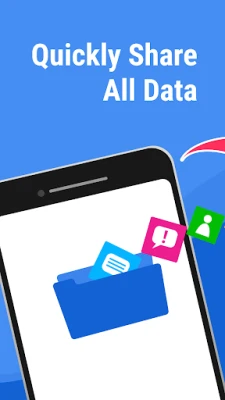
- Comprehensive Data Transfer: Move your contacts, call logs, SMS, MMS, applications, photos, videos, music, and more with just a few clicks.
- Backup and Restore: Easily back up your data and restore it whenever needed, ensuring you never lose important information.
- Schedule Backups: Set up automatic backups to keep your data safe and up-to-date without manual intervention.
- Secure Data Transfer: Enjoy peace of mind with secure connections that protect your data from leaks and breaches.
- Offline Transfer: Transfer data between devices without the need for Wi-Fi, making it convenient for users on the go.
How to Use Smart Switch for Data Transfer
Transferring data using Smart Switch is straightforward. Follow these steps to ensure a smooth transition:
Step 1: Download and Install Smart Switch
Begin by downloading the Smart Switch app from the Google Play Store or Apple App Store, depending on your device. Install the app and open it to get started.
Step 2: Connect Your Devices
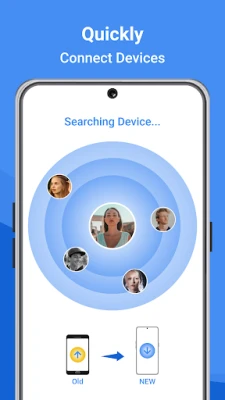
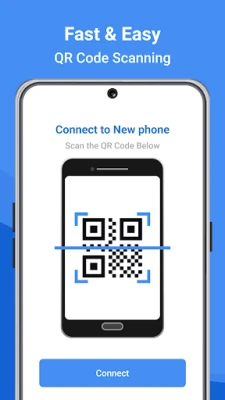
To initiate the transfer, connect both devices. You can do this via a USB cable or wirelessly. If using a cable, ensure you have the appropriate adapters for your devices.
Step 3: Select Data to Transfer
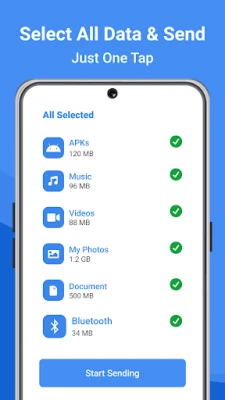
Once connected, the app will detect your devices. Choose the type of data you wish to transfer, such as contacts, messages, photos, and applications. Smart Switch will automatically organize the data for you.
Step 4: Start the Transfer
After selecting the data, click on the transfer button. The app will begin moving your files to the new device. Depending on the amount of data, this process may take a few minutes.
Step 5: Verify the Transfer
Once the transfer is complete, check your new device to ensure all data has been successfully moved. You can now enjoy your new phone without worrying about losing important information.
Backing Up Your Data with Smart Switch
In addition to transferring data, Smart Switch also allows you to back up your information securely. Here’s how:
Step 1: Open Smart Switch
Launch the Smart Switch app on your device.
Step 2: Choose Backup Option
Select the backup option from the main menu. You can choose to back up your entire device or select specific data types.
Step 3: Save Your Backup
Decide where to save your backup. You can store it on your device’s SD card or use cloud storage services for added security.
Step 4: Schedule Future Backups
To ensure your data remains safe, consider scheduling regular backups. This feature allows you to automate the process, so you never have to worry about losing important files.
Why Choose Smart Switch Mobile?
Smart Switch Mobile stands out among data transfer applications for several reasons:
- User-Friendly Interface: The app is designed for ease of use, making it accessible for users of all technical levels.
- Fast Transfer Speeds: Smart Switch is optimized for quick data transfers, allowing you to switch devices without wasting time.
- Privacy Protection: The app prioritizes your privacy, ensuring that your data is transferred securely without the risk of leaks.
Conclusion
Switching phones doesn't have to be a stressful experience. With Smart Switch Mobile, you can effortlessly transfer and back up your data, ensuring that all your important information is safe and accessible. Download the Smart Switch app today and experience the convenience of seamless data transfer and backup.
We encourage you to provide feedback on your experience with Smart Switch Mobile. Your insights help us improve and develop more innovative mobile data transfer solutions for users like you.
Rate the App
User Reviews













Popular Apps









Editor's Choice