

Latest Version
1.1.7
July 27, 2026
kinu026
Tools
Android
0
Free
com.mxt.simplememo
Report a Problem
More About Simple Notepad
Mastering Note Management: Deleting, Transferring, and Customizing Your Notes
In today's fast-paced digital world, effective note management is essential for productivity. Whether you're a student, a professional, or someone who simply loves to jot down ideas, understanding how to efficiently handle your notes can make a significant difference. This article will guide you through the process of deleting notes, transferring content to other applications, and customizing your note-taking experience.
How to Delete Notes Effortlessly
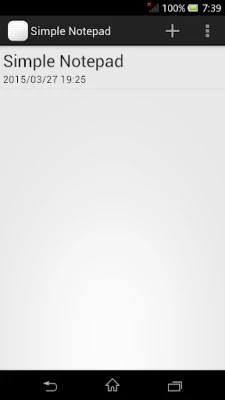
Deleting a note is a straightforward process that can help you keep your digital workspace organized. To remove a note, simply press and hold the note item you wish to delete. This action will prompt a menu with options, including the delete function. Confirm your choice, and the note will be permanently removed from your collection.
Transferring Note Content to Other Applications
One of the most powerful features of modern note-taking apps is the ability to transfer content seamlessly to other applications. This functionality allows you to enhance your productivity by integrating your notes with various tools. Here’s how you can do it:
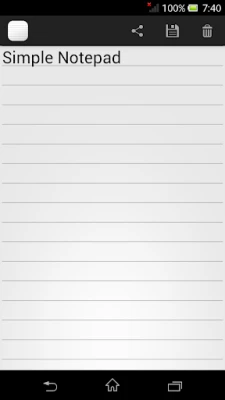
- Select the Note: Open the note you want to transfer.
- Copy the Content: Use the copy function to select all the text or specific sections you wish to move.
- Open the Target Application: Navigate to the app where you want to paste the content, such as a word processor, email client, or project management tool.
- Paste the Content: Use the paste function to insert your notes into the new application.
This simple process allows you to utilize your notes in various contexts, enhancing collaboration and ensuring that your ideas are always accessible.
Customizing Your Note-Taking Experience
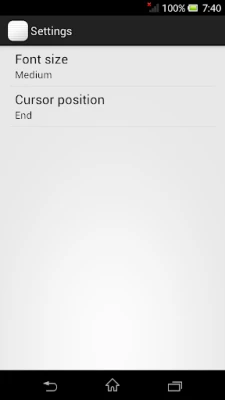
To optimize your note-taking experience, customization options are available in the settings menu. Here are some key features you can adjust:
Adjusting Font Size
Font size can significantly impact readability. In the settings screen, you can easily change the font size to suit your preferences. A larger font may be beneficial for those who prefer a more spacious layout, while a smaller font can help fit more information on the screen.
Positioning the Cursor in the Editor
Another important aspect of note customization is the cursor position in the editor. You can adjust where the cursor appears when you start typing, making it easier to navigate through your notes. This feature is particularly useful for those who frequently edit or reorganize their content.
Conclusion: Elevate Your Note Management Skills
By mastering the art of note management, you can enhance your productivity and streamline your workflow. Deleting notes, transferring content to other applications, and customizing your note-taking experience are essential skills that will help you stay organized and efficient. Embrace these techniques, and watch your productivity soar!
Rate the App
User Reviews















Popular Apps










Editor's Choice