
Latest Version
1.0.2021062599
February 20, 2026
NVIDIA
Tools
Android
0
Free
com.nvidia.shield.ask
Report a Problem
More About SHIELD TV - Alexa Skill
Ultimate Guide to Setting Up Your NVIDIA SHIELD TV with Alexa
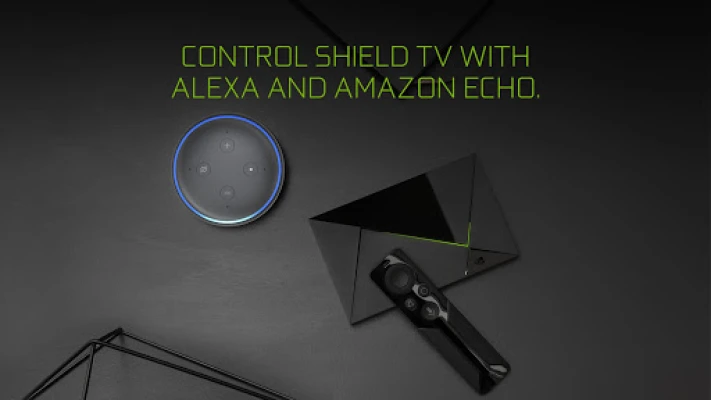
Setting up your NVIDIA SHIELD TV to work seamlessly with Alexa can enhance your entertainment experience significantly. This guide will walk you through the essential steps to get started, ensuring you can control your SHIELD TV effortlessly using voice commands.
Step 1: Create Your SHIELD Account
To begin, you need to add a SHIELD account to your device. Follow these simple steps:
- Navigate to Settings on your SHIELD TV.
- Select Accounts.
- Choose Add Account and then select SHIELD.
Your SHIELD account will utilize the same credentials as your NVIDIA account, so ensure you have your login information handy.
Step 2: Enable the NVIDIA SHIELD TV Skill in the Alexa App
Next, you’ll need to enable the NVIDIA SHIELD TV skill within the Alexa app on your mobile device. Here’s how:
- Open the Alexa app on your smartphone or tablet.
- Search for the NVIDIA SHIELD TV skill in the app.
- Enable the skill and follow the prompts to link it to your NVIDIA account.
It’s crucial to use the same account credentials that you set up in Step 1 to ensure proper integration.
Step 3: Communicate with Alexa
Once you have completed the setup, you can start using voice commands to control your SHIELD TV. When addressing Alexa, make sure to refer to your device by its name. The default name is SHIELD, but you can customize it if you prefer.
How to Change Your Device Name
If you wish to change the default device name for easier recognition, follow these steps:
- Go to Settings on your SHIELD TV.
- Select About.
- Choose Device Name and enter your preferred name.
Changing the device name can help you avoid confusion, especially if you have multiple Alexa-enabled devices in your home.
Tips for Using Alexa with Your SHIELD TV
To maximize your experience, consider these tips:
- Voice Commands: Familiarize yourself with common voice commands for controlling playback, volume, and navigation.
- Smart Home Integration: If you have other smart home devices, integrate them with Alexa for a more cohesive experience.
- Regular Updates: Keep your SHIELD TV and Alexa app updated to ensure compatibility and access to new features.
Troubleshooting Common Issues
If you encounter any issues while setting up or using your SHIELD TV with Alexa, consider the following troubleshooting steps:
- Check Your Internet Connection: Ensure that both your SHIELD TV and mobile device are connected to the internet.
- Re-link Your Account: If the skill isn’t responding, try unlinking and then re-linking your NVIDIA account in the Alexa app.
- Restart Devices: Sometimes, a simple restart of your SHIELD TV or mobile device can resolve connectivity issues.
Conclusion
Integrating your NVIDIA SHIELD TV with Alexa opens up a world of convenience and control. By following these straightforward steps, you can enjoy a hands-free entertainment experience that enhances your viewing pleasure. Whether you’re streaming your favorite shows or playing games, using voice commands makes it all the more enjoyable. Start exploring the capabilities of your SHIELD TV today!
Rate the App
User Reviews














Popular Apps










Editor's Choice