

Latest Version
1.8
July 06, 2026
Photograph
Tools
Android
0
Free
com.photograph.sepia
Report a Problem
More About Sepia / Monochrome Photo
Transform Your Photos: How to Convert Images to Sepia and Grayscale
In the digital age, enhancing your photos has never been easier. Whether you want to evoke nostalgia or create a timeless look, converting images to sepia or grayscale can add a unique touch to your photography. This article will guide you through the process of transforming your images, exploring the benefits and techniques of these classic styles.
Understanding Sepia and Grayscale
Before diving into the conversion process, it’s essential to understand what sepia and grayscale images are. Both styles offer distinct aesthetics that can dramatically alter the mood of your photographs.
What is Sepia?
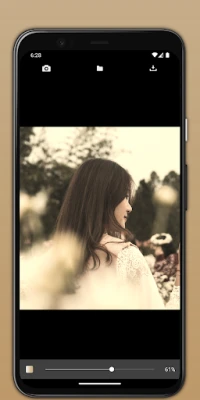
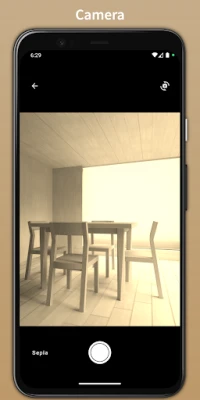
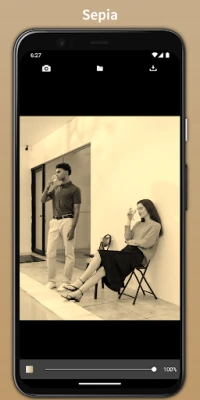
Sepia is a warm brown tone that gives images a vintage feel. Originally, sepia was a photographic technique used in the 19th century, where prints were treated with a solution derived from the ink sac of the common cuttlefish. Today, digital tools can replicate this effect, allowing photographers to add a nostalgic touch to their images.
What is Grayscale?
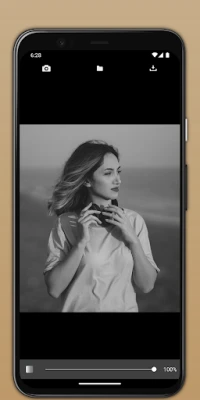
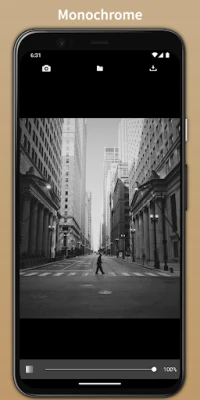
Grayscale, on the other hand, consists of shades of gray, ranging from black to white. This style emphasizes contrast and texture, stripping away color to focus on the composition and details of the image. Grayscale images can convey a sense of drama and sophistication, making them popular in various artistic expressions.
Why Convert Images to Sepia or Grayscale?
There are several reasons to convert your images to sepia or grayscale:
- Artistic Expression: Both styles allow for creative expression, enabling photographers to convey emotions and narratives through their work.
- Timeless Appeal: Sepia and grayscale images often have a classic look that transcends trends, making them suitable for various projects.
- Focus on Composition: By removing color, these styles draw attention to the subject, composition, and textures within the image.
How to Convert Images to Sepia and Grayscale
Converting images to sepia or grayscale can be done using various software applications and online tools. Here’s a step-by-step guide to help you through the process.
Using Photo Editing Software
Many photo editing programs, such as Adobe Photoshop, GIMP, or Lightroom, offer built-in features for converting images to sepia or grayscale. Here’s how to do it:
Converting to Grayscale
- Open your image in the photo editing software.
- Navigate to the 'Image' menu and select 'Adjustments.'
- Choose 'Black & White' or 'Desaturate' to remove color from the image.
- Adjust the contrast and brightness to enhance the image as needed.
- Save your edited image in the desired format.
Converting to Sepia
- Open your image in the photo editing software.
- Convert the image to grayscale using the steps above.
- Next, apply a sepia tone by adding a color overlay. In Photoshop, you can do this by creating a new layer and filling it with a brown color.
- Adjust the layer’s opacity to achieve the desired sepia effect.
- Save your final image.
Using Online Tools
If you prefer a quicker method, numerous online tools can convert images to sepia or grayscale without the need for software installation. Here are a few popular options:
- Fotor: This online photo editor offers a simple interface for applying sepia and grayscale effects.
- Pixlr: A versatile online editor that allows for easy conversion and additional editing features.
- Canva: Known for its design capabilities, Canva also provides filters for sepia and grayscale conversions.
Tips for Enhancing Your Sepia and Grayscale Images
To make your sepia and grayscale images stand out, consider the following tips:
- Play with Contrast: Adjusting the contrast can bring out details and textures, making your images more visually appealing.
- Experiment with Brightness: Fine-tuning the brightness can help achieve the perfect balance between light and dark areas.
- Use Filters Wisely: While filters can enhance your images, overusing them can lead to unnatural results. Aim for subtlety.
Conclusion
Converting images to sepia or grayscale is a fantastic way to enhance your photography and evoke emotions. Whether you choose to use professional software or online tools, the process is straightforward and rewarding. By understanding the characteristics of each style and applying the right techniques, you can create stunning images that capture the essence of your subjects. Start experimenting today and discover the timeless beauty of sepia and grayscale photography!
Rate the App
User Reviews















Popular Apps










Editor's Choice