


Latest Version
5.3.4.5
August 01, 2025
mishuto
Tools
Android
0
Free
com.mishuto.pingtest
Report a Problem
More About Pingmon - network ping monitor
When to Use a Ping Test: A Comprehensive Guide
Understanding when to conduct a ping test is essential for maintaining a stable internet connection. Whether you're a gamer, a remote worker, or a streaming enthusiast, knowing how to diagnose network issues can save you time and frustration. This article will explore the scenarios in which a ping test is necessary, how to effectively communicate network problems to technical support, and the tools available to monitor your connection quality.
When Should You Conduct a Ping Test?
There are several situations where a ping test can be beneficial:
- Unstable Connections: If you notice frequent drops in your internet quality, a ping test can help identify the root cause.
- Lagging Online Activities: For gamers or users of video conferencing tools like Zoom or Skype, lag can be a significant issue. A ping test can confirm whether the problem lies with your connection.
- Streaming Issues: If YouTube or other streaming services frequently freeze, a quick ping test can provide insights that standard speed tests may overlook.
Proving Network Issues to Technical Support
When experiencing lag in games or stuttering in video playback, it’s crucial to provide technical support with concrete evidence of your network issues. Standard internet speed tests often fail to give a comprehensive view of your connection quality over time. Here’s how to effectively document your network performance:
- Conduct a Long-Term Ping Test: Use a reliable ping testing tool to monitor your connection stability over several minutes or hours. This will provide a detailed log of your connection statistics.
- Share Your Results: Once you have gathered sufficient data, send the logs to your support team. This evidence will help them understand the nature of your connectivity issues.
Utilizing Pingmon for Enhanced Network Monitoring
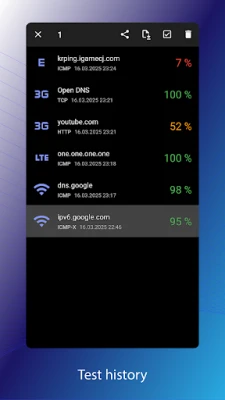
If you rely on critical network resources, consider using Pingmon. This tool allows you to test your connection using various protocols, including ICMP, TCP, and HTTP, ensuring comprehensive monitoring of web resource availability. Here’s what Pingmon can do for you:
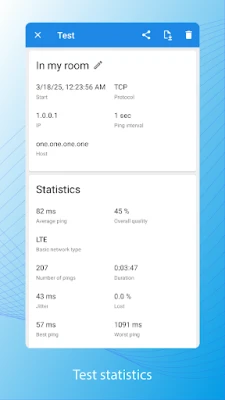
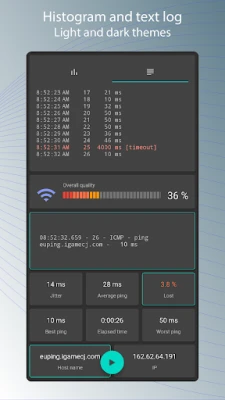
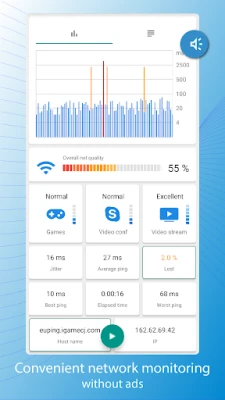
- Assess Gaming Parameters: Pingmon calculates essential metrics such as ping latency, jitter, and packet loss, helping you determine the suitability of game servers.
- Real-Time Monitoring: The graphical interface of Pingmon is user-friendly and displays real-time network statistics, making it easier to understand your connection quality.
- Convenient Widgets: Install widgets on your home screen to monitor multiple hosts simultaneously. These widgets can be customized in size and theme, providing a tailored experience.
Compatibility and Functionality
Pingmon is versatile and works effectively with various types of networks, including Wi-Fi, 4G, local networks, and the internet. However, it’s important to note that while Pingmon is an excellent tool for monitoring ping and connection stability, it does not replace programs designed to check network bandwidth. Instead, it should be used in conjunction with these tools for a complete assessment of your network quality.
Permissions and Background Monitoring
To fully utilize Pingmon’s capabilities, certain permissions are required:
- Network Type Display: The application may request permission to manage calls to display the type of connected network (e.g., 3G/LTE). You can decline this permission, but the network type will not be logged.
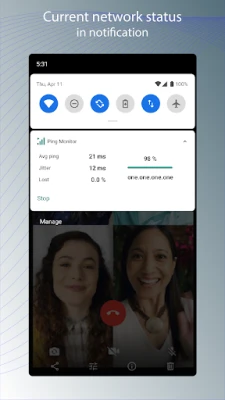
- Background Monitoring: For continuous network monitoring while using other applications, Pingmon requires foreground service (FGS) permission. On Android version 14 and above, you will be prompted to allow notifications to view current network statistics or stop the service at any time.
Conclusion: Enhance Your Internet Experience
Conducting a ping test is a vital step in diagnosing and resolving network issues. By understanding when to use this tool and how to communicate your findings to technical support, you can significantly improve your online experience. With tools like Pingmon, you can monitor your connection quality in real-time, ensuring that your gaming, streaming, and online communication remain uninterrupted. Enjoy a seamless internet experience by staying informed about your network performance!
Rate the App
User Reviews













Popular Apps










Editor's Choice