
Latest Version
7.0
February 20, 2026
Handcent
Communication
Android
0
Free
com.handcent.sms.skin.stylepurple
Report a Problem
More About Handcent Next SMS Skin Purple
Ultimate Guide to Customizing Your Handcent Experience
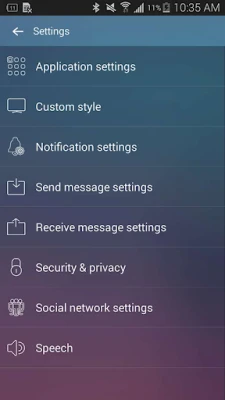
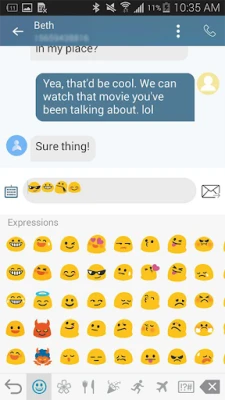
Are you looking to enhance your messaging experience with Handcent? Customizing your app can significantly improve usability and aesthetics. This guide will walk you through the steps to personalize your Handcent interface and utilize the App2SD feature for optimal performance.
Step-by-Step Guide to Customize Handcent Skins
Handcent offers a variety of skins that allow you to tailor the look and feel of your messaging app. Follow these simple steps to choose and apply a skin that suits your style:
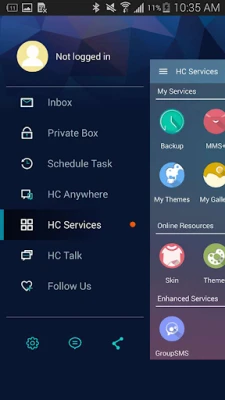
- Open the Navigation Drawer: Launch the Handcent app on your device. Swipe from the left edge of the screen or tap the menu icon to open the navigation drawer.
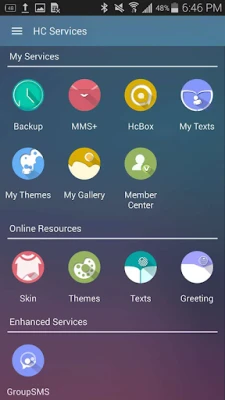
- Select Handcent Services: In the navigation drawer, locate and tap on the "Handcent Services" option. This section contains various customization features.
- Choose Your Skin: Within the Handcent Services menu, find the "Skin" option. Browse through the available skins and select the one that appeals to you the most.
- Apply the Skin: After selecting your preferred skin, confirm your choice to apply it. Enjoy your newly customized messaging interface!
Maximizing Storage with App2SD
For users who want to optimize their device's storage, the App2SD feature is a game-changer. This plugin allows you to move Handcent to your SD card, freeing up valuable internal storage space. Here’s how to do it:
- Access System Settings: Go to your device's main settings menu. Scroll down and select "Applications" or "Apps," depending on your device.
- Open Application Manager: In the Applications menu, find and tap on "Application Manager." This will display a list of all installed applications.
- Locate Handcent: Scroll through the list to find the Handcent app. Tap on it to open the app's settings.
- Move to Storage Card: Look for the option labeled "Move to Storage Card." Tap this option to transfer Handcent to your SD card, optimizing your device's storage.
Benefits of Customizing Handcent
Customizing your Handcent app not only enhances its visual appeal but also improves functionality. Here are some key benefits:
- Personalized User Experience: Tailoring the app to your preferences makes messaging more enjoyable and engaging.
- Improved Navigation: A well-organized interface allows for quicker access to features, enhancing overall efficiency.
- Storage Management: Utilizing the App2SD feature helps manage your device's storage effectively, ensuring smooth performance.
Conclusion
Customizing your Handcent messaging app is a straightforward process that can significantly enhance your user experience. By selecting a skin that resonates with your style and utilizing the App2SD feature, you can enjoy a more personalized and efficient messaging platform. Follow the steps outlined in this guide to make the most of your Handcent app today!
Rate the App
User Reviews














Popular Apps










Editor's Choice