

Latest Version
1.29-free
January 13, 2026
EastCat
Tools
Android
0
Free
com.eastcat.autosync.free
Report a Problem
More About File Backup to PC
Effortlessly Transfer Files from Your Android Device to Your Computer Over WiFi
In today's digital age, managing files across devices is essential for both personal and professional use. SyncMyDroid offers a seamless solution for transferring files from your Android device to your computer over WiFi, ensuring that your data remains secure and easily accessible. This article will explore the features, benefits, and usage of SyncMyDroid, making it your go-to tool for file management.
Why Choose SyncMyDroid for File Transfers?
SyncMyDroid stands out as a reliable application for backing up and transferring files. Here are some compelling reasons to consider using it:
- Effortless Backup: Easily back up your photos, videos, documents, and other important files.
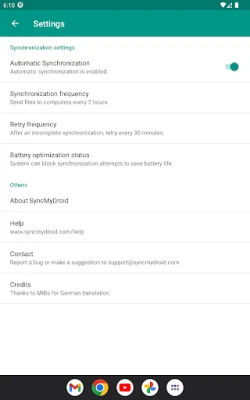
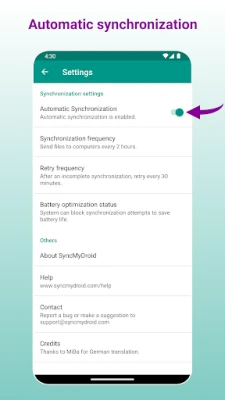
- Automatic Transfers: SyncMyDroid automatically transfers files from your Android device to your computer when both devices are connected to the same network.
- Enhanced Security: Keep your sensitive data safe at home without relying on cloud services, as no information is transferred over the internet.
Unlock Advanced Features with SyncMyDroid Pro
For users seeking enhanced functionality, the Pro version of SyncMyDroid offers additional features:
- Secure File Transfers: Copy files to your laptop using a secure encrypted connection, even on public WiFi networks, such as those found in hotels.
- File Restoration: Effortlessly restore files to your Android device from your PC, ensuring that your data is always within reach.
How to Use SyncMyDroid: A Step-by-Step Guide
Getting started with SyncMyDroid is simple. Follow these steps to begin transferring files:
- Download and Install: Visit www.syncmydroid.com to download SyncMyDroid for PC and install it on your computer.
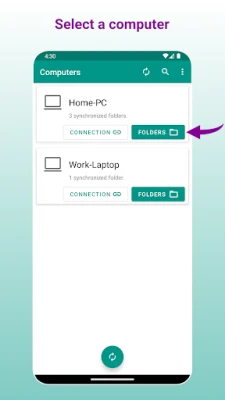
- Connect Your Devices: Ensure your Android device is connected to the same local WiFi network as your computer.
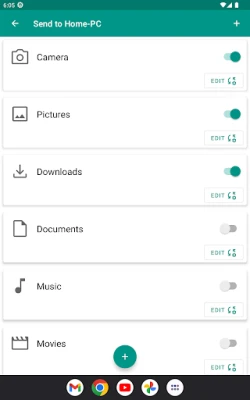
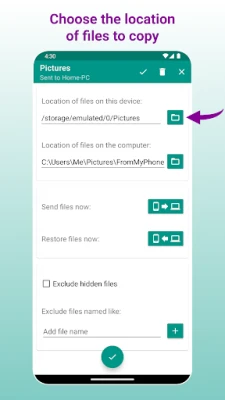
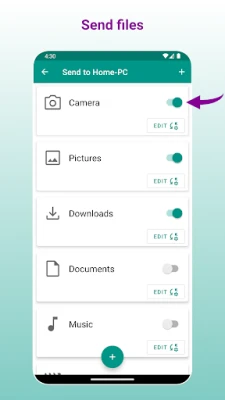
- Select Folders: Choose the folders you wish to synchronize between your devices.
And just like that, you're ready to go!
How SyncMyDroid Works
Understanding how SyncMyDroid operates can help you maximize its potential:
- Periodic File Copying: SyncMyDroid copies the selected files to your computer either periodically or upon your request through the app.
- Real-Time Updates: If you modify a file on your Android device, the changes will automatically reflect on your computer.
- File Deletion Management: Deleting a file from your Android device does not remove its copy from your computer unless you choose to delete it there as well.
- Backup of Modifications: If you modify a copied file on your computer, SyncMyDroid retains your changes and creates a backup of the original file alongside the modified version.
Download SyncMyDroid Today
Ready to simplify your file management? Download SyncMyDroid from the following links:
Your Privacy Matters
At SyncMyDroid, we prioritize your privacy. Rest assured, we do not collect any personal data, allowing you to transfer files with peace of mind.
Conclusion
SyncMyDroid is an invaluable tool for anyone looking to manage their files efficiently between their Android devices and computers. With its user-friendly interface, robust features, and commitment to privacy, it stands out as a top choice for file transfers. Start using SyncMyDroid today and experience the convenience of seamless file management!
Rate the App
User Reviews













Popular Apps










Editor's Choice