


Latest Version
2.0.1
January 28, 2026
vector123
Tools
Android
0
Free
com.vector123.vcard
Report a Problem
More About Contacts Tools - Excel to VCF
Ultimate Guide to Backing Up Phone Contacts and Converting Excel to vCard
In today's digital age, safeguarding your contact information is crucial. Whether you want to back up your phone contacts to a computer, cloud storage, or export them to an Excel file, having a reliable method is essential. This guide will walk you through the process of backing up your phone book and converting Excel files to vCard format seamlessly.
Why Backup Your Phone Contacts?
Backing up your phone contacts ensures that you never lose important information. Whether you switch devices, experience a software failure, or accidentally delete contacts, having a backup can save you time and stress. Here are a few reasons to consider:
- Data Loss Prevention: Accidental deletions or device malfunctions can lead to lost contacts.
- Device Upgrades: When upgrading to a new phone, transferring contacts is essential.
- Cloud Storage Benefits: Storing contacts in the cloud allows for easy access from any device.
How to Backup Phone Contacts
There are several methods to back up your phone contacts. Here are the most effective ways:
1. Backup to Computer
Backing up your contacts to a computer is straightforward. Follow these steps:
- Connect your phone to your computer using a USB cable.
- Open the phone management software (like iTunes for iPhones or Android File Transfer for Android devices).
- Select the option to export contacts and choose the desired format (CSV or vCard).
- Save the file to your computer.
2. Backup to Cloud
Using cloud services like Google Drive or iCloud is an efficient way to back up your contacts:
- For Android, go to Settings > Accounts > Google and enable "Contacts Sync."
- For iPhone, go to Settings > [Your Name] > iCloud and toggle on "Contacts."
3. Export to Excel File
Exporting your contacts to an Excel file allows for easy management and editing. Here’s how:
- Open your contacts app and select the option to export.
- Choose the format as Excel (CSV or XLS).
- Save the file to your desired location.
How to Convert Excel xlsx to vCard
Converting your Excel contacts to vCard format is a simple process that can be completed in just two steps. This is particularly useful for importing contacts into various applications and devices. Here’s how to do it:
Step 1: Prepare Your Excel File
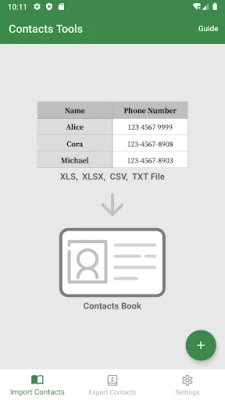
Ensure your Excel file is formatted correctly. The first cell should contain "Name," and the second cell should contain "Phone Number." Follow these guidelines:
- Use the XLS file format for better compatibility.
- Ensure that your contact details are organized in a clear and concise manner.
Step 2: Use an Excel to vCard Converter
Utilize an online Excel to vCard converter tool. Here’s a quick guide:
- Upload your prepared Excel file (XLS, XLSX, CSV, or TXT).
- Click on the "Convert" button to generate your vCard file.
- Download the vCard file to your device.
Tips for Successful Conversion
To ensure a smooth conversion process, consider the following tips:
- Always back up your original Excel file before conversion.
- Check for any formatting issues in your Excel file that may affect the conversion.
- Use a reliable converter tool to avoid data loss.
Conclusion
Backing up your phone contacts and converting Excel files to vCard format is essential for maintaining your digital address book. By following the steps outlined in this guide, you can ensure that your contact information is secure and easily transferable. Whether you choose to back up to a computer, cloud, or export to Excel, having a reliable system in place will save you time and hassle in the long run.
For more information on privacy policies related to contact management, you can refer to the Privacy Policy.
Rate the App
User Reviews













Popular Apps










Editor's Choice