Latest Version
November 01, 2024
Google LLC
Tools
Android
0
Free
com.google.chromeremotedesktop
Report a Problem
More About Chrome Remote Desktop
How to Set Up Remote Access with Chrome Remote Desktop
In today's fast-paced digital world, having the ability to access your computer remotely can significantly enhance your productivity and flexibility. Chrome Remote Desktop is a powerful tool that allows you to connect to your computers from anywhere, using any device. This guide will walk you through the steps to set up remote access on your computers and mobile devices.
Step 1: Install Chrome Remote Desktop on Your Computers
To begin, you need to install the Chrome Remote Desktop application on each of your computers. Follow these simple steps:
- Open the Chrome Web Store.
- Search for "Chrome Remote Desktop" and click on the application.
- Click on the "Add to Chrome" button to install the extension.
- Once installed, follow the on-screen instructions to set up remote access.
During the setup process, you will be prompted to enable remote connections and set a secure PIN. This PIN will be required whenever you attempt to access your computer remotely, ensuring that your data remains secure.
Step 2: Access Your Computers Remotely
Once you have installed and configured Chrome Remote Desktop on your computers, you can easily access them from your Android device. Here’s how:
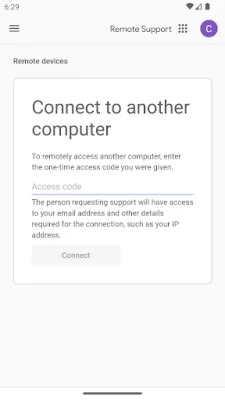
- Download the Chrome Remote Desktop app from the Google Play Store on your Android device.
- Open the app and sign in with the same Google account you used to set up remote access on your computers.
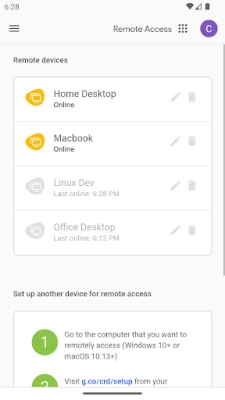
- You will see a list of your online computers. Tap on the computer you wish to connect to.
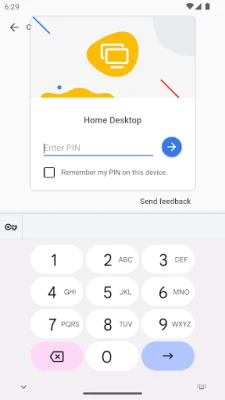
- Enter the secure PIN you created during the setup process.
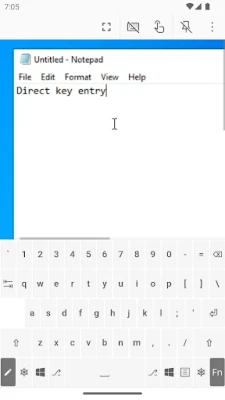
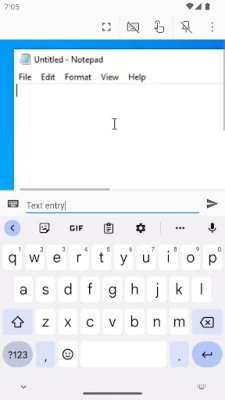
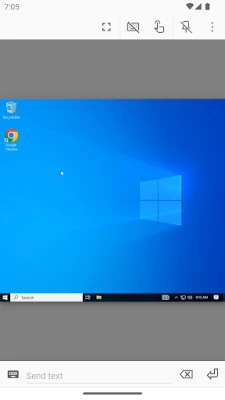
After entering the PIN, you will gain access to your computer's desktop, allowing you to work as if you were sitting right in front of it.
Understanding Privacy and Security
When using remote access tools, it’s essential to be aware of privacy and security concerns. Chrome Remote Desktop is designed with user privacy in mind. For detailed information about how your data is handled, refer to the following:
These resources provide insights into how Google protects your information while using their services, ensuring that your remote sessions remain secure.
Benefits of Using Chrome Remote Desktop
Chrome Remote Desktop offers numerous advantages for users looking to enhance their remote work capabilities:
- Accessibility: Access your computer from anywhere, whether you’re at home, in the office, or on the go.
- Cross-Platform Compatibility: Use Chrome Remote Desktop on various devices, including Windows, Mac, Linux, and Android.
- Easy Setup: The installation and configuration process is straightforward, making it accessible for users of all technical levels.
- Secure Connections: With the use of a secure PIN and encryption, your remote sessions are protected from unauthorized access.
Troubleshooting Common Issues
While Chrome Remote Desktop is generally reliable, you may encounter some common issues. Here are a few troubleshooting tips:
- Connection Problems: Ensure that both your computer and Android device are connected to the internet. Restarting your devices can also help resolve connectivity issues.
- PIN Issues: If you forget your PIN, you can reset it through the Chrome Remote Desktop settings on your computer.
- App Crashes: If the app crashes on your Android device, try clearing the app cache or reinstalling the application.
Conclusion
Setting up remote access with Chrome Remote Desktop is a straightforward process that can greatly enhance your ability to work remotely. By following the steps outlined in this guide, you can easily connect to your computers from your Android device, ensuring that you remain productive no matter where you are. With a focus on security and user privacy, Chrome Remote Desktop is a reliable choice for anyone looking to access their computer remotely.
Rate the App
User Reviews







Popular Apps









Editor's Choice