

Latest Version
Version
8.5.2
8.5.2
Update
July 18, 2026
July 18, 2026
Developer
Avica
Avica
Categories
Tools
Tools
Platforms
Android
Android
Downloads
0
0
License
Free
Free
Package Name
com.raywing.avica
com.raywing.avica
Report
Report a Problem
Report a Problem
More About Avica Remote Desktop
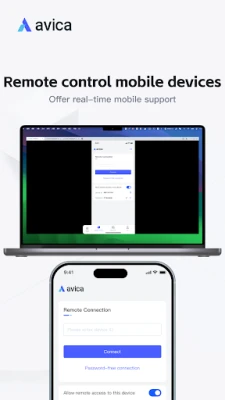
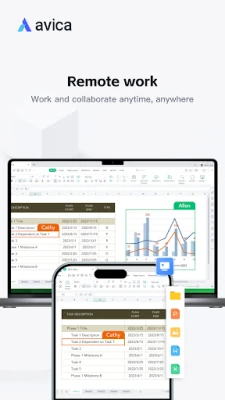
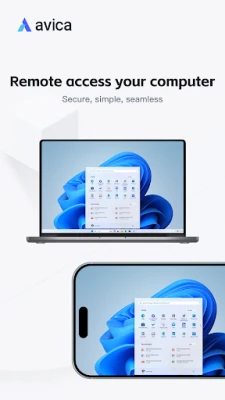
Avica Remote Desktop provides secure, simple, and seamless remote access to computers and mobile devices. It enables remote connections, whether for remote work, remote IT support, remote gaming or distance Learning, making it the ideal solution for your needs.
Why Avica Remote Desktop is the Ultimate Choice for Remote Access
In today's fast-paced digital world, remote access solutions have become essential for both personal and professional use. Avica Remote Desktop stands out as a premier choice, offering a plethora of features designed to enhance user experience and security. Below, we delve into the reasons why Avica is the go-to solution for remote desktop access.Unmatched Cross-Platform Support
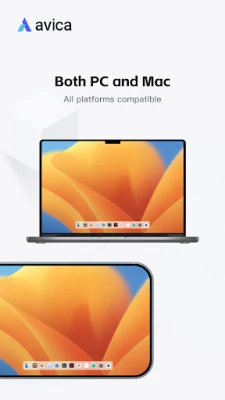
Avica Remote Desktop is compatible with a variety of operating systems, including Windows, macOS, Android, and iOS. This extensive cross-platform support ensures that users can connect to their devices seamlessly, regardless of the operating system they are using. Whether you are at home, in the office, or on the go, Avica provides the flexibility you need to access your files and applications.Industry-Leading Security Features
Security is a top priority for any remote access solution, and Avica does not disappoint. With end-to-end AES-256 encryption, your data remains secure during transmission. This industry-acknowledged security standard protects sensitive information from unauthorized access, giving users peace of mind while they work remotely.Exceptional Performance with Ultra HD Quality
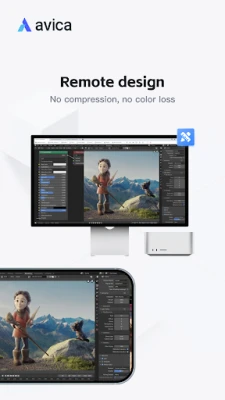
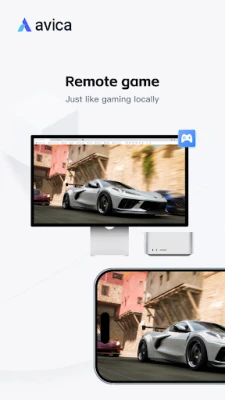
Experience your remote desktop in stunning detail with Avica's Ultra HD quality. The application delivers high-resolution visuals that make it easy to work on graphics-intensive tasks. Coupled with low latency of just 10ms and high frame rates, users can enjoy a smooth and responsive experience, whether they are editing documents or playing games.User-Friendly Interface
Avica Remote Desktop boasts a user-friendly interface that simplifies the remote access process. The intuitive design allows users of all skill levels to navigate the application effortlessly. With easy-to-follow instructions and a clean layout, getting started with Avica is a breeze.Cost-Effective Solution
One of the standout features of Avica is that it is free to use, making it an accessible option for individuals and businesses alike. While the basic features are available at no cost, users can opt for advanced functionalities through a subscription plan, ensuring that they have access to the tools they need as their requirements grow.Key Features of Avica Remote Desktop
- Secure and Fast File Transfer: Transfer files quickly and securely between devices without compromising on speed or safety.
- Multi-Monitor Support: Effortlessly view and manage multiple monitors from a remote computer on your local mobile device.
- Privacy Mode: Protect your privacy by blocking others from seeing or hearing your activities on the host device.
- Game Keyboard: Customize keyboard mapping for an enhanced gaming experience on your remote PC.
- Intuitive Control Gestures: Utilize touch and pointer modes for seamless navigation and control.
- Real-Time Sound Transmission: Enjoy real-time audio while accessing your remote desktop, making it ideal for multimedia tasks.
- Remote Restart and Shutdown: Manage your remote device with ease by restarting or shutting it down from anywhere.
- Remote Lock Screen: Secure your remote session by locking the screen when not in use.
Quick Start Guide to Using Avica Remote Desktop
Getting started with Avica Remote Desktop is simple. Follow these steps to establish a remote connection:- Install and launch the Avica app on both your local and remote devices.
- Enter the remote device's Avica ID on your local device.
- Click the "Connect" button to initiate the remote connection.
Learn More About Avica
For more information about Avica Remote Desktop and its features, visit the official website at Avica.link.Important Links
- Privacy Policy - Terms of UseAccessibility Features
To utilize certain controlled features, users must enable Accessibility permissions (AccessibilityService API). This permission allows other devices to remotely view and control the operation of your device, providing unparalleled convenience and control, no matter where you are. In conclusion, Avica Remote Desktop is a powerful, secure, and user-friendly solution for anyone in need of remote access. With its extensive features and commitment to security, it is the ideal choice for both personal and professional use. Experience the future of remote desktop access with Avica today!Rate the App
Add Comment & Review
User Reviews
Based on 0 reviews
No reviews added yet.
Comments will not be approved to be posted if they are SPAM, abusive, off-topic, use profanity, contain a personal attack, or promote hate of any kind.











More »

Popular Apps

Nova BrowserJef Studios

Throne WishlistThrone.com

Dark Web Browser : OrNETStronger Apps

LINE: Calls & MessagesLINE (LY Corporation)

XENO; Plan, AutoSave & InvestXENO Investment

Rogue SlimeQuest Seeker Games

Дядя Ваня VPNKONDAKOV
PrivacyWallPrivacyWall

Robinhood WalletRobinhood

Roman empire games - AoD RomeRoboBot Studio
More »
Editor's Choice

Grim Soul: Dark Survival RPGBrickworks Games Ltd

Craft of Survival - Gladiators101XP LIMITED

Last Shelter: SurvivalLong Tech Network Limited

Dawn of Zombies: Survival GameRoyal Ark

Merge Survival : WastelandStickyHands Inc.

AoD Vikings: Valhalla GameRoboBot Studio

Viking Clan: RagnarokKano Games

Vikings: War of ClansPlarium LLC

Asphalt 9: LegendsGameloft SE

Modern Tanks: War Tank GamesXDEVS LTD