Latest Version
6.9.906821247
July 15, 2026
Google LLC
Tools
Android
0
Free
com.google.android.tv.remote.service
Report a Problem
More About Android TV Remote Service
How to Connect Your Android Device to Android TV: A Step-by-Step Guide
Connecting your Android phone or tablet to your Android TV can enhance your viewing experience, allowing you to stream content, share media, and control your TV with ease. This guide will walk you through the process of establishing a connection, ensuring you can enjoy all the features your Android TV has to offer.
Step 1: Ensure Both Devices Are on the Same Network
Before you begin, make sure that your Android phone or tablet and your Android TV are connected to the same Wi-Fi network. This is crucial for seamless communication between the devices. Follow these steps:
- On your Android TV, navigate to Settings.
- Select Network & Internet.
- Check the Wi-Fi network your TV is connected to.
- On your Android device, go to Settings > Wi-Fi and ensure it’s connected to the same network.
Step 2: Connect via Bluetooth (Optional)
If you prefer a wireless connection without using Wi-Fi, you can connect your Android device to your Android TV via Bluetooth. Here’s how:
- On your Android TV, go to Settings.
- Select Remote & Accessories.
- Choose Add Accessory to make your TV discoverable.
- On your Android device, open Settings > Bluetooth and enable Bluetooth.
- Look for your Android TV in the list of available devices and select it to pair.
Step 3: Use the Google Home App
For a more integrated experience, consider using the Google Home app. This app allows you to control your Android TV and cast content directly from your device. Here’s how to set it up:
- Download and install the Google Home app from the Google Play Store.
- Open the app and sign in with your Google account.
- Tap on the + icon to add a new device.
- Select Set up device and then choose New devices.
- Follow the on-screen instructions to connect your Android TV.
Step 4: Casting Content to Your Android TV
Once your devices are connected, you can easily cast content from your Android device to your Android TV. Here’s how:
- Open a compatible app on your Android device, such as YouTube or Netflix.
- Look for the Cast icon (a rectangle with a Wi-Fi symbol in the corner).
- Tap the icon and select your Android TV from the list of available devices.
- Your content will now stream on your TV screen.
Step 5: Control Your Android TV with Your Phone
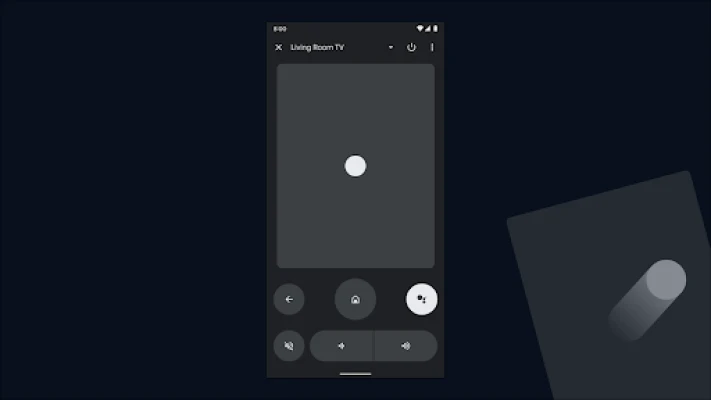
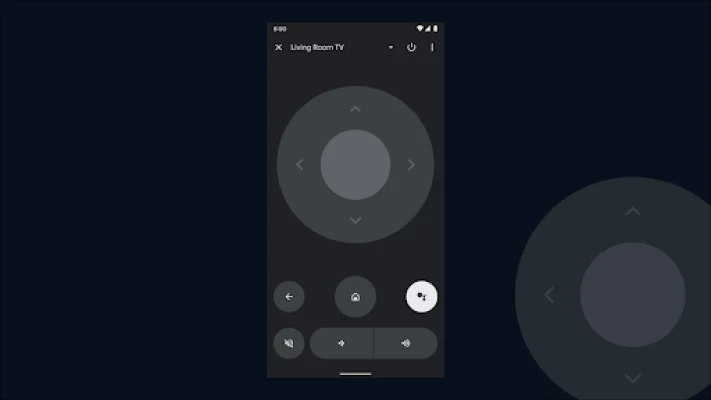
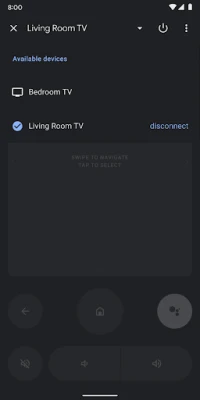
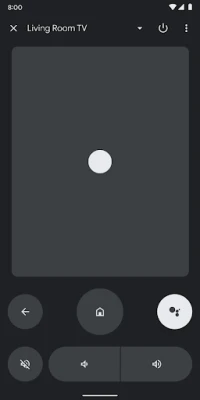
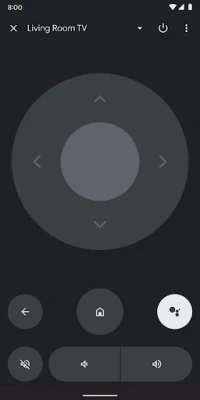
In addition to casting, you can use your Android device as a remote control for your Android TV. Here’s how to enable this feature:
- Open the Google Home app on your Android device.
- Select your Android TV from the list of devices.
- Tap on Cast my screen to mirror your device’s screen to the TV.
- You can now navigate your TV using your phone.
Conclusion
Connecting your Android phone or tablet to your Android TV opens up a world of entertainment possibilities. Whether you choose to connect via Wi-Fi or Bluetooth, the process is straightforward and enhances your viewing experience. By following these steps, you can easily stream your favorite content, control your TV, and enjoy a seamless multimedia experience. Start exploring the features of your Android TV today!
Rate the App
User Reviews









Popular Apps









Editor's Choice